
Setup
Install.
Add the student app icon to your phone home screen for quick mobile access.
iPhone / iPad
Safari: Share, then Add to Home Screen.
Use Safari for the iPhone setup. After adding it, the USWC Hawaii icon appears on your Home Screen like a regular app.
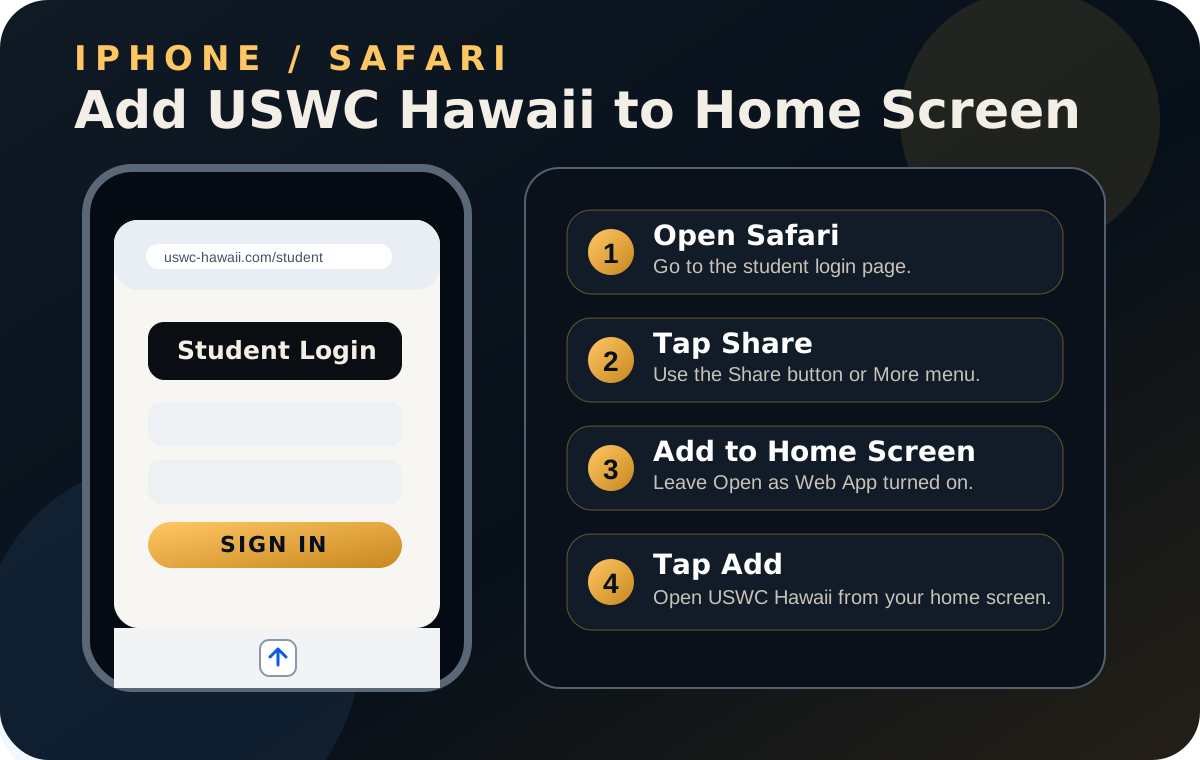
- Open Safari on the iPhone or iPad.
- Go to www.uswc-hawaii.com/app/.
- Tap the More button, then tap Share. If Share is already visible, tap Share.
- Scroll down and tap Add to Home Screen.
- Leave Open as Web App turned on if that option appears.
- Keep the name USWC Hawaii, then tap Add.
Android
Chrome: Install app or Add to Home screen.
Use Chrome on Android. Chrome may say Install or Add to home screen depending on the device.
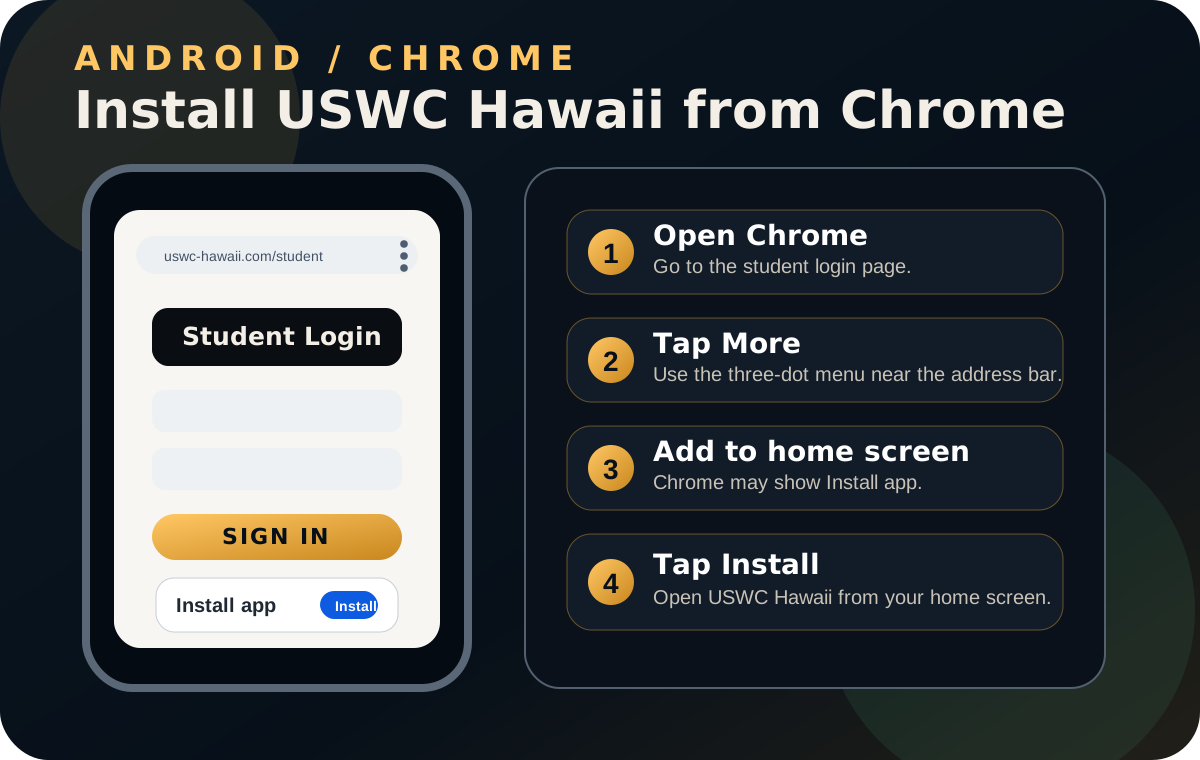
- Open Chrome on the Android phone or tablet.
- Go to www.uswc-hawaii.com/app/.
- Tap the More menu near the address bar.
- Tap Add to home screen, then tap Install when offered.
- Follow the confirmation prompts.
- Open USWC Hawaii from your home screen.